Everything you study, in one place.

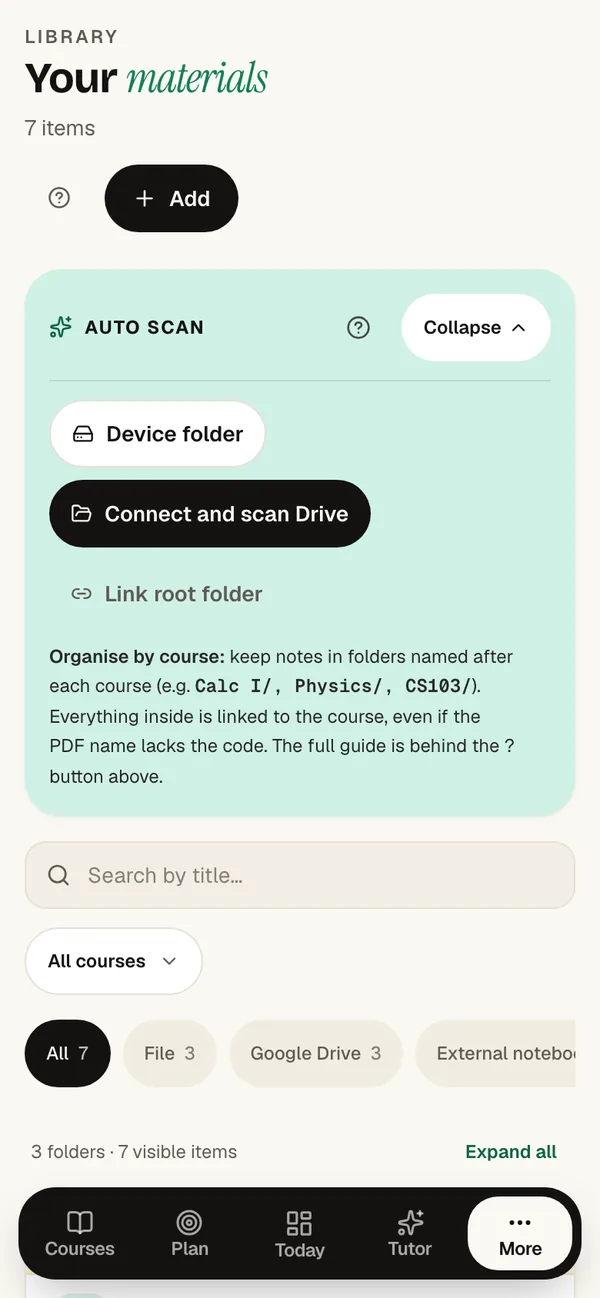
Course notes in Drive, past papers in a shared folder, slides on the portal, PDFs on your computer. Unipedia brings it all together, sorts it by course and Uni uses it when you ask.

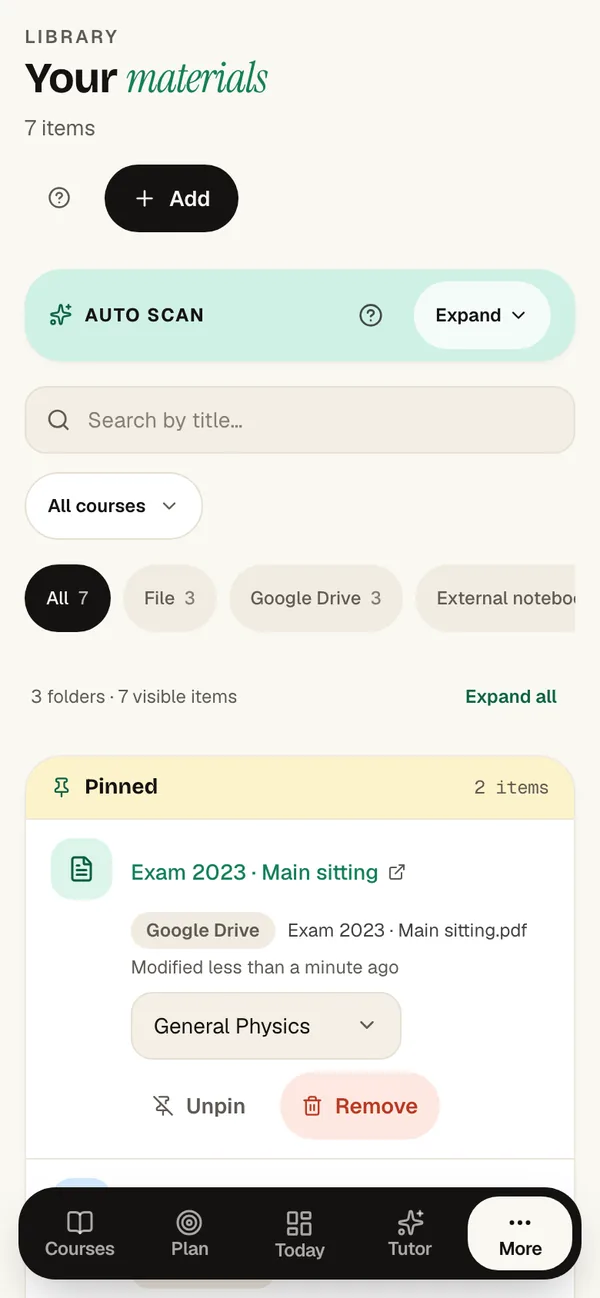
Materials library with Google Drive search and device folders

01

Connect Google Drive

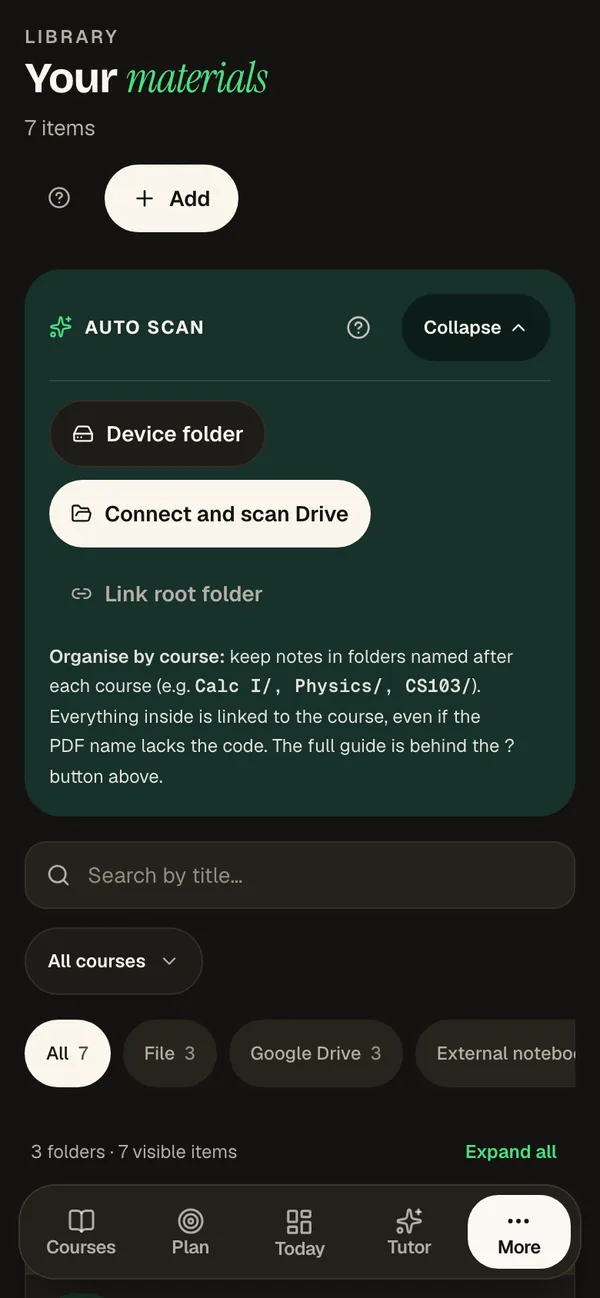
«Connect and scan Drive» finds PDFs and course notes in your folders. Link your main semester folder and the app goes straight to each course's folders.

  • Shared folders from classmates and your course
  • Search again whenever you like
  • Only reads the folders you link
Materials: search a device folder or Google Drive

02

Folders on your computer or drive

Import files and whole folders from your device: past papers, course notes and whatever you downloaded from the portal. Organise them in subfolders named after each course.

  • Works without an account
  • On your phone, pick files course by course
  • Stored on this device
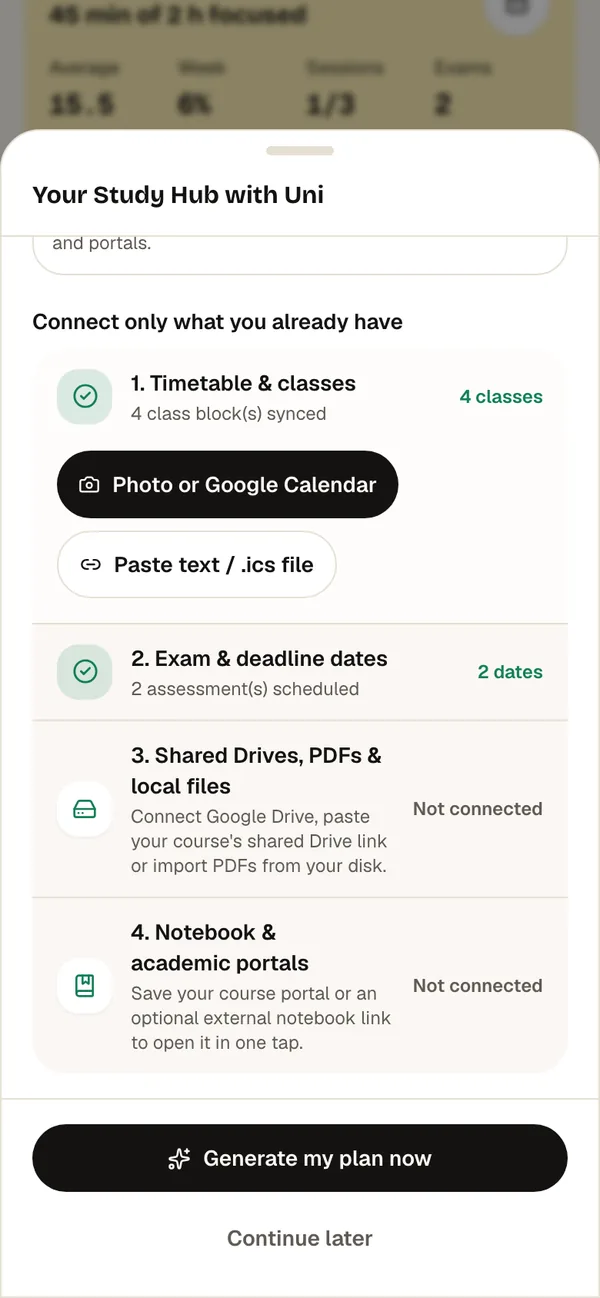
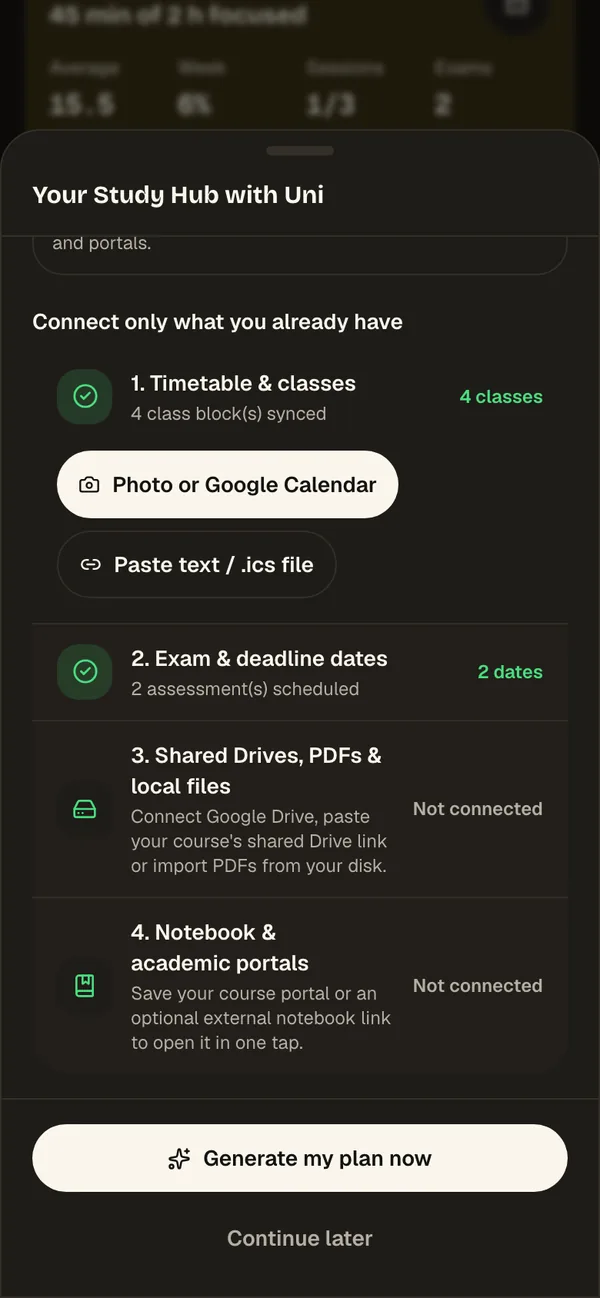
Study hub: timetable, test dates, Drives and portals

03

Sorted by course and by type

Filter by course and by source, search by title and pin what you use most. Each material has a type: past paper, exam, worksheet, course notes, slides or report.

  • «Pinned» at the top of the library
  • Mark papers that include solutions
  • Also in each course's Materials tab
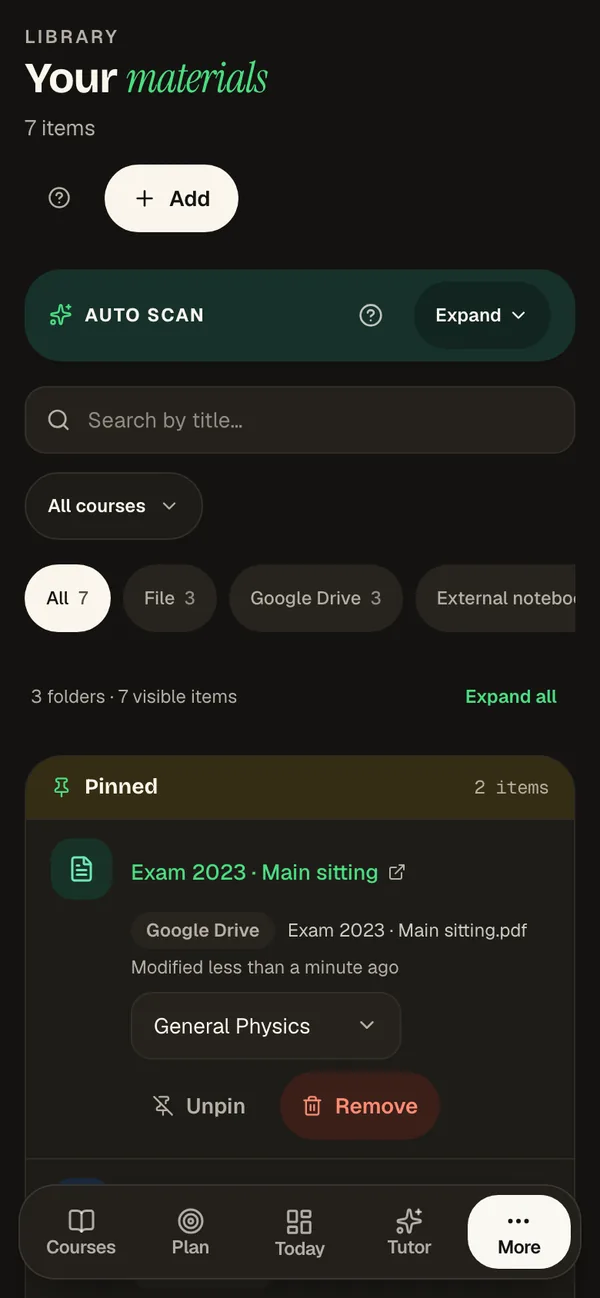
Materials library with Google Drive search and device folders

04

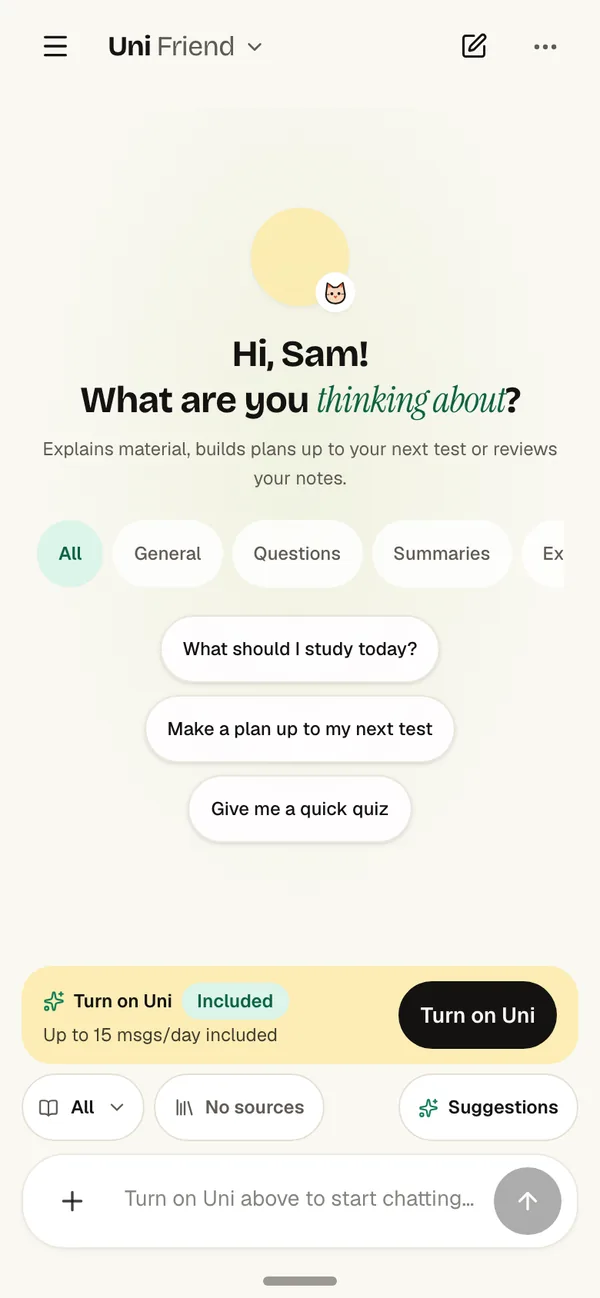
Uni reads your sources

In the Tutor you choose the sources: one course, all of them, or only the notes you attach. Answers and practice questions start from there.

  • Attach photos and PDFs in the chat
  • NotebookLM and course portal links
  • Tells you when something isn't in your materials
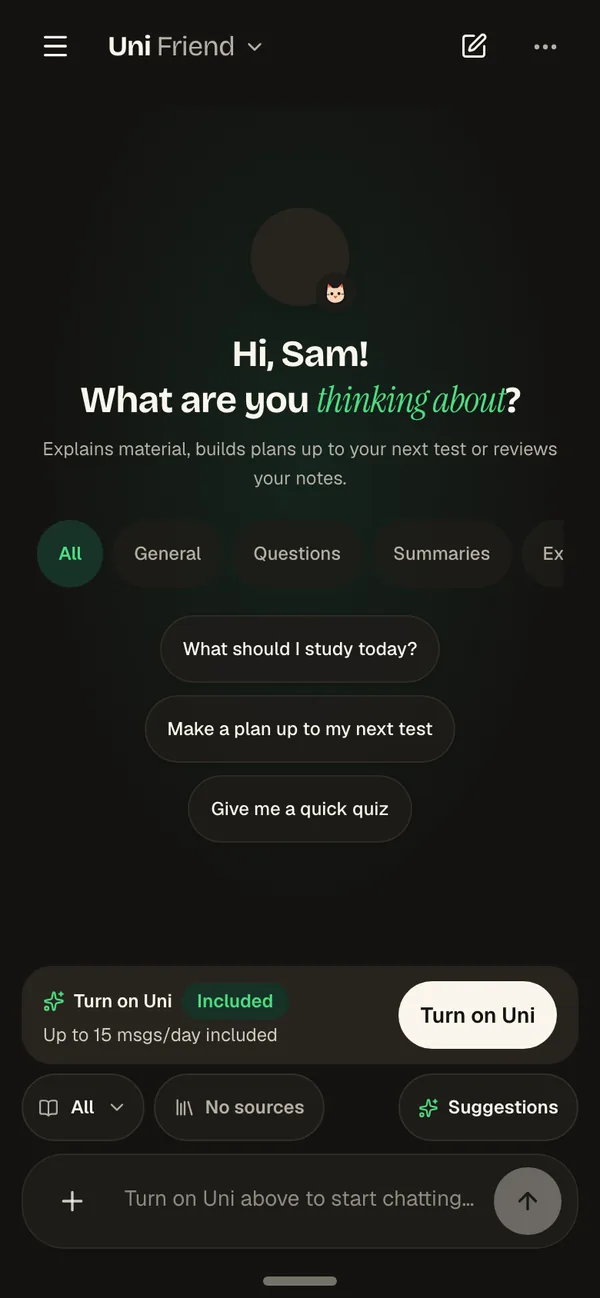
Uni tutor with suggested questions

How to use it

  1. 1

    Open Materials

    From the «More» menu, or in each course's tab.

  2. 2

    Connect a source

    Google Drive, a device folder or a link.

  3. 3

    Ask Uni

    Pick the course as a source and ask.

Questions

Questions about Materials

Does the app keep copies of my Drive files?

It keeps a reference to each file and reads the content when you need it, with your Google Drive permission. Files from your device stay in the browser's local storage.

Can I use my course's shared Drive?

Yes. Paste the link to the shared folder and it becomes part of your library.

Do I need to organise my folders in a particular way?

It helps to have one folder per course, named after it. The folder guide on the page itself explains how.

Your next test can be calm.

Open Unipedia, add your courses and let the plan do the work.

Open Unipedia