Your semester set up from a photo.

No need to type in every course. Take a screenshot of your timetable and Uni recognises your courses and classes; send another of your test dates and the plan starts on its own.

First setup: importing the timetable from a screenshot

01

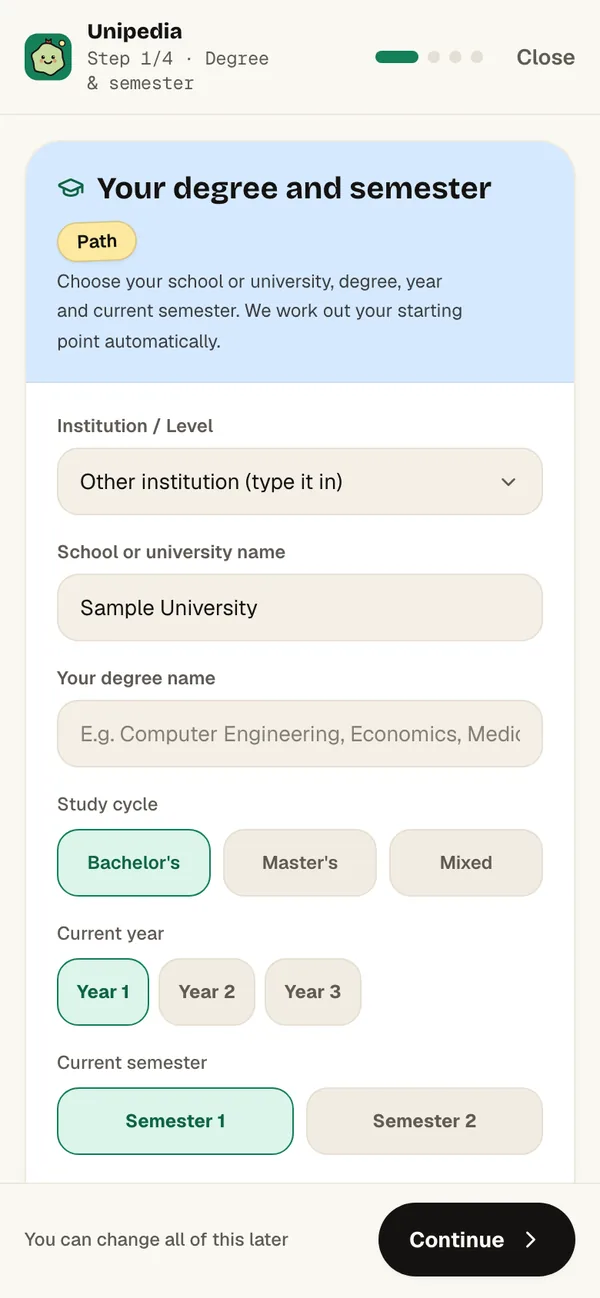
Your degree, without long forms

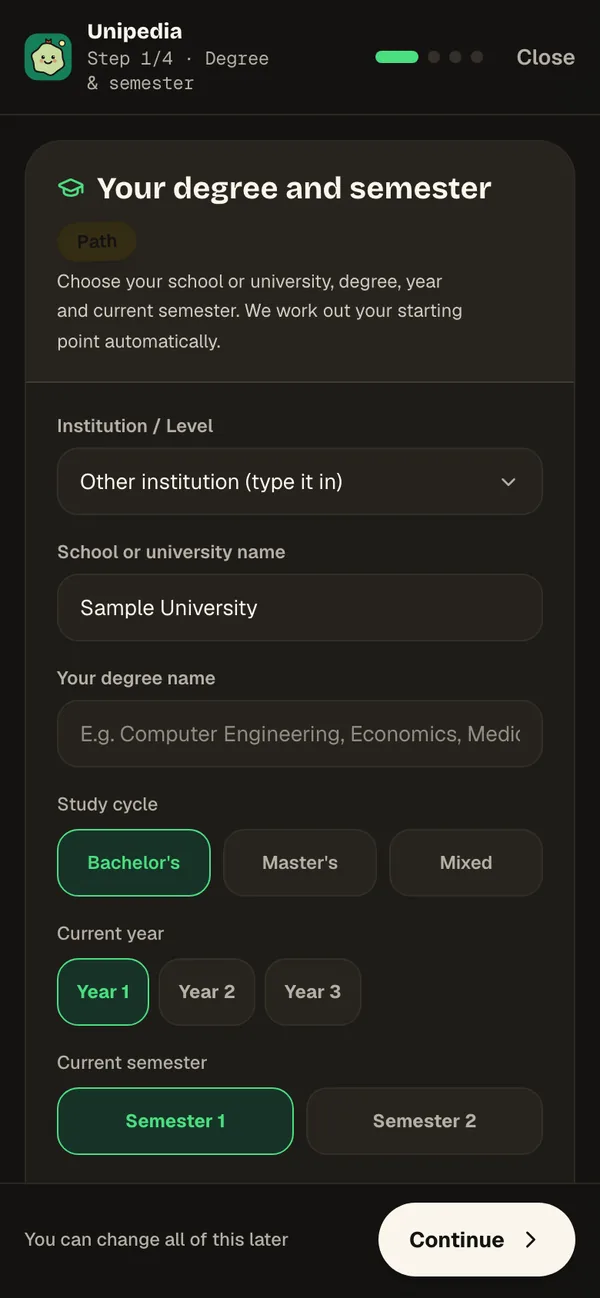
Pick your university or school, degree, year and semester. The app works out your starting point and credits for you.

  • University and secondary school
  • Bachelor's, master's or integrated
  • You can change everything later
First setup: degree and semester

02

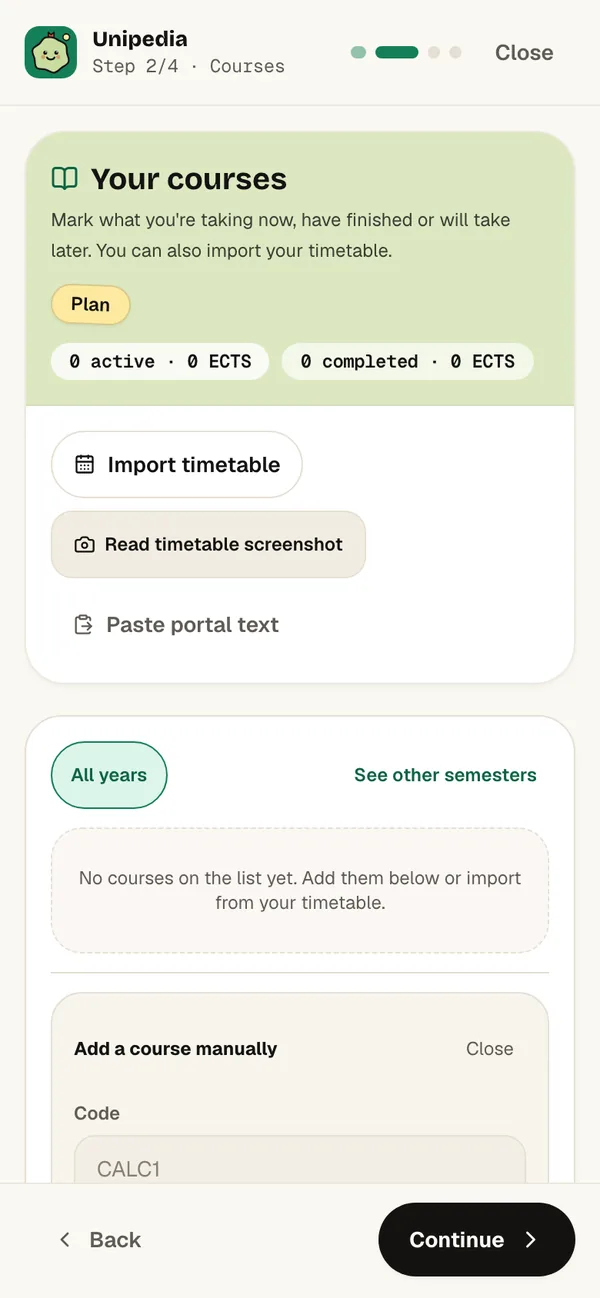
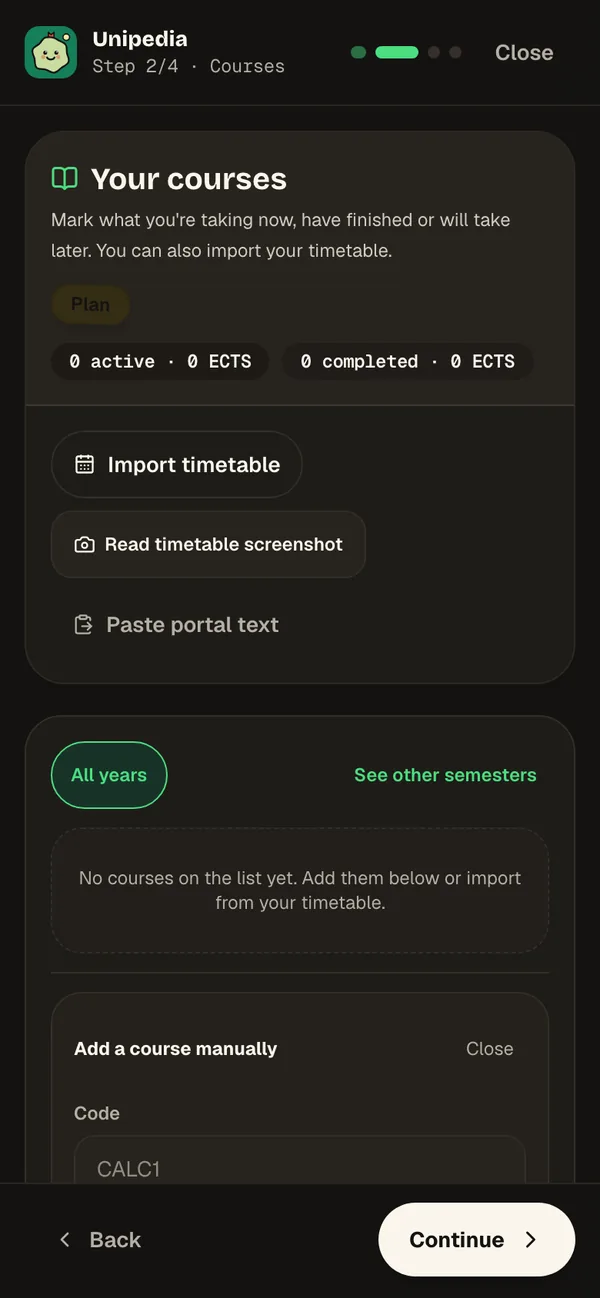
A screenshot of your timetable

With «Read timetable screenshot», the app reads the image and returns the courses and classes it recognised, ready to confirm.

  • Or paste text from your portal
  • Or use Google Calendar and an .ics file
  • Reading uses Uni (Gemini); you can turn it off in Settings
First setup: importing the timetable from a screenshot

03

Test dates, also from a photo

In the Study hub, send Uni a screenshot of your assessment calendar, or add them by hand. No dates yet? The plan starts light and reorganises itself when they arrive.

  • Name, date, time and weight of each assessment
  • Google Calendar connected, if you like
  • Kick-off mode for the first weeks
Study hub: timetable, test dates, Drives and portals

04

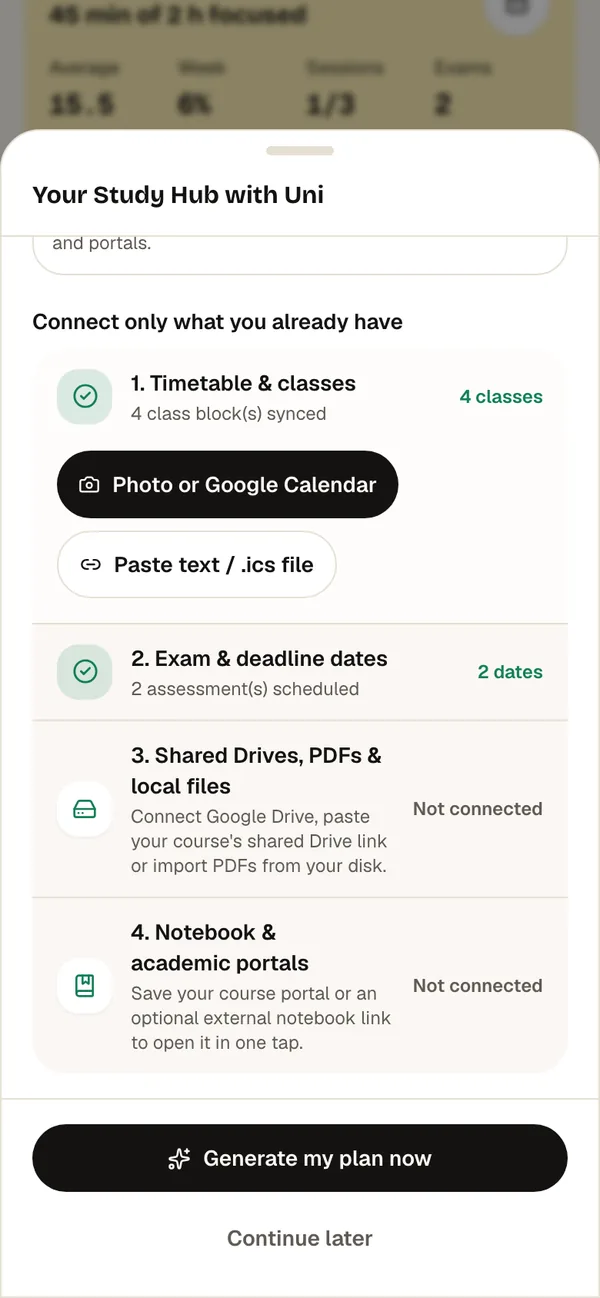
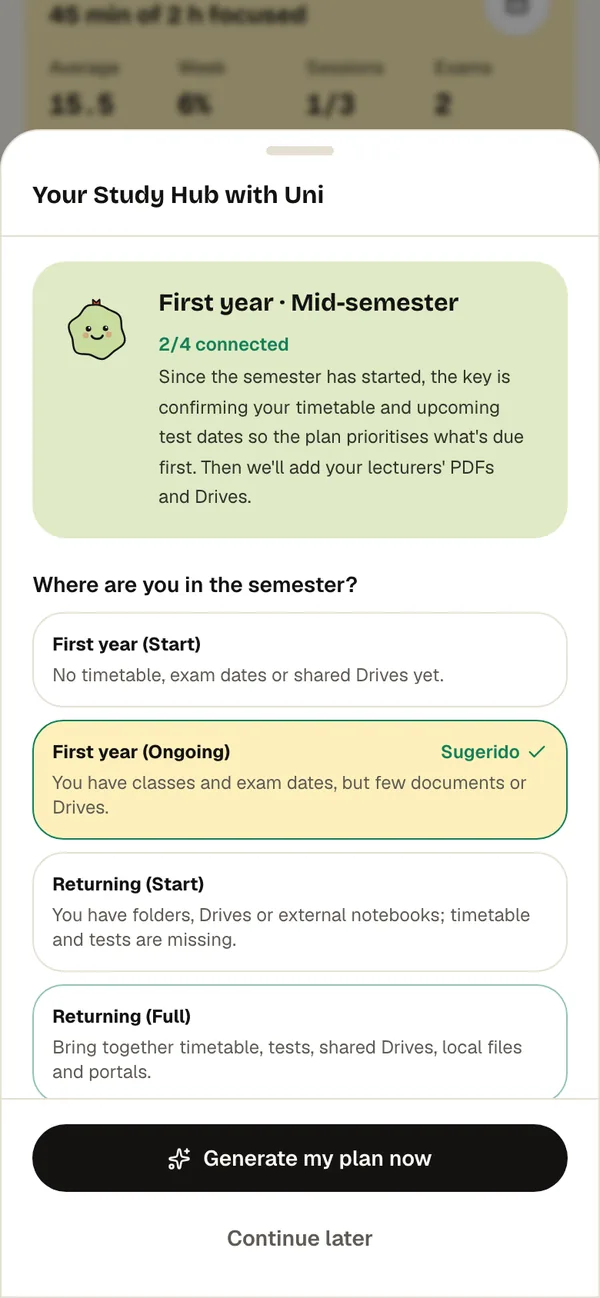
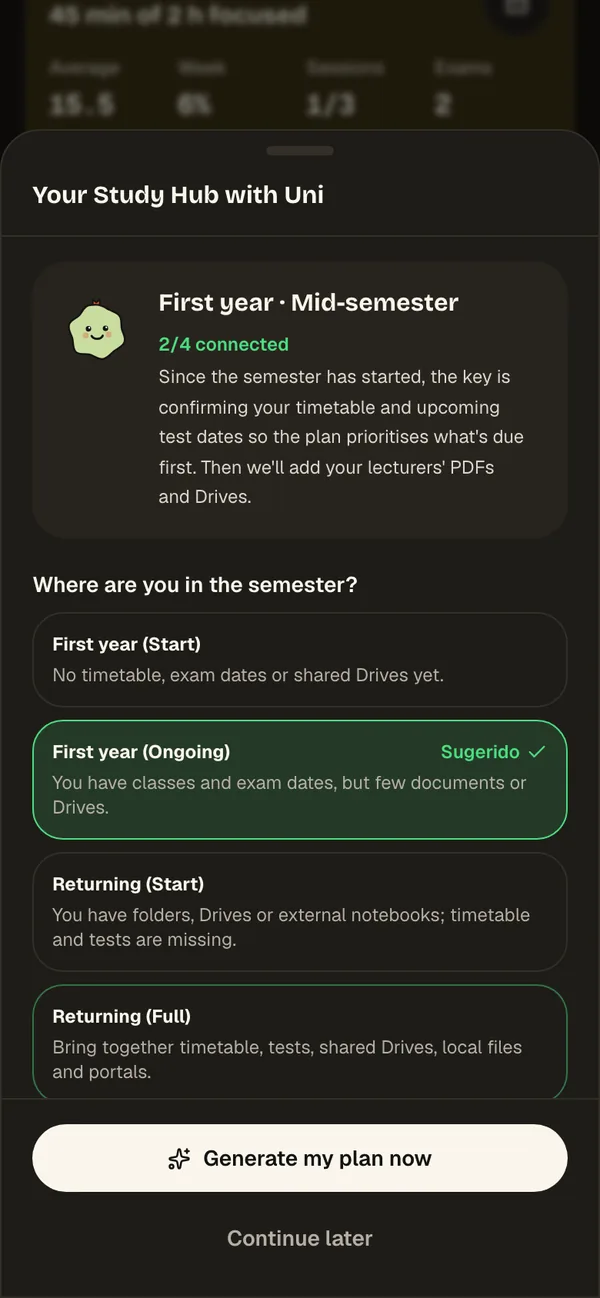
The Hub brings in the rest

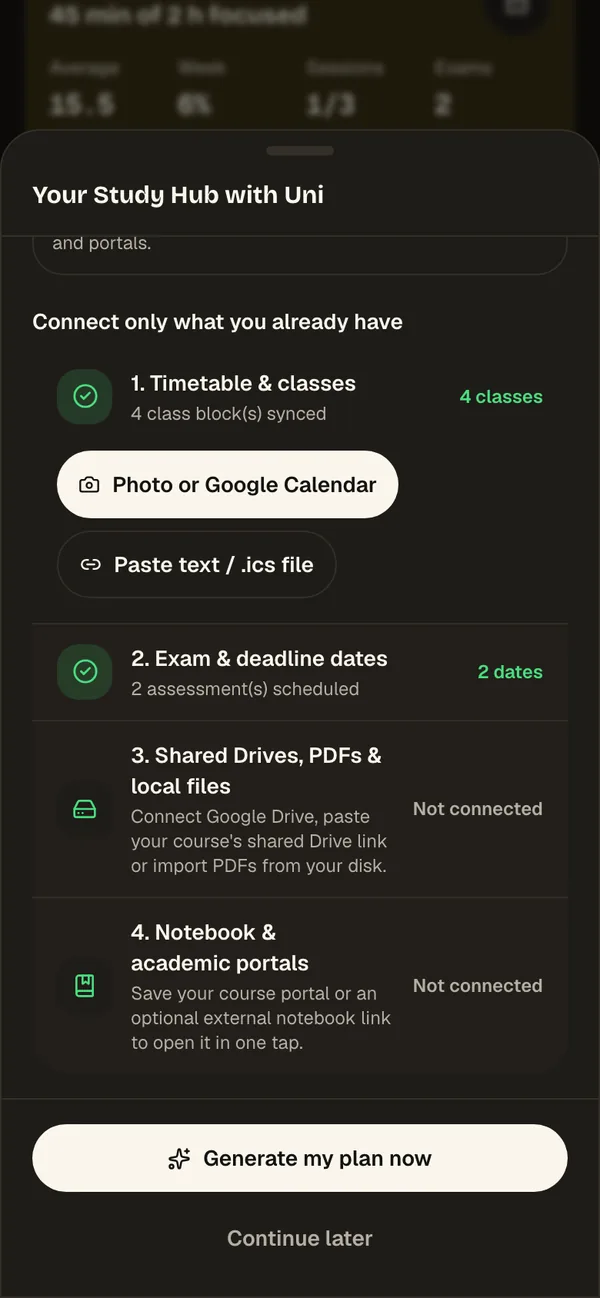
Connect only what you already have: your course's shared Drives, PDFs on your computer, the course portal or an external notebook. Then, «Generate my plan now».

  • Pick your moment: first-year or returning, start or mid-semester
  • Shows what's connected and what's missing
  • Continue later, without losing anything
Study hub: where you are in the semester

In three steps

  1. 1

    Degree and semester

    University, degree, year and current semester.

  2. 2

    Courses from your timetable

    A timetable screenshot, or text from your portal.

  3. 3

    Tests and materials

    Screenshot of the dates, Drive and PDFs, in the Hub.

Questions

Questions about Get started

Do I need an account to get started?

No. You can use everything on your device. An account only lets you back up and sync across devices.

What happens to the photo of my timetable?

It's sent to Uni (Google's Gemini) only to read your courses, classes and dates. You can turn automatic reading off in Settings and type it in yourself.

What if my timetable changes mid-semester?

Import it again or edit the course. The plan recalculates and shows «Undo».

Your next test can be calm.

Open Unipedia, add your courses and let the plan do the work.

Open Unipedia